Syniti Migrate
Creating & Maintaining Deployments
This topic is related to the following sections:
This topic contains the following sections:
About Creating and Maintaining Deployments
Deployments are a method of segmenting releases breaking down the work load between region, site or business unit depending on how the project is organized. The Deployments can segregate data from a larger Release. Some Releases may involve only a single Deployment, where one person is assigned to review and validate each Data Object in its entirety. Other releases may involve multiple Deployments, which provide segmentation by countries, companies, sites, business units, etc.
In this scenario, each Deployment will be assigned to users for review and validation of only their portion of the data.
On the Project Setup multi-panel page, the Deployments panel is in the lower middle of the Project Setup page.
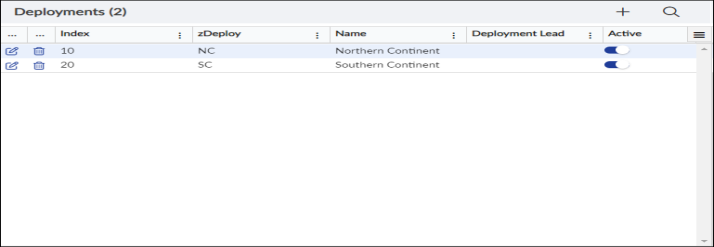
Project Setup: Deployments panel
The list of active Deployments that have been added are on the Deployments panel. The panel displays the following:
|
Heading |
Description |
|---|---|
|
Index |
Sequence of the list. Value will increase by factor of 10 for each new entry. (Required) |
|
zDeploy |
Short name that appears on all validation reports to segment data. |
|
Name |
Name of the Deployment. |
|
Deployment Lead |
Business user responsible for this Deployment. NOTE: This field accommodates keyed entries as well as a drop-down list. |
|
Active |
Toggle for status of the Deployment. NOTE: Defaults field as Active. |
Prerequisites to Creating a Deployment
The prerequisite to this process is building the Milestones within Project Setup.
Add a New Deployment
On the Deployment panel, click the Add  icon to create a new Deployment and launch the Add Deployment window. From this window, fields values can be entered.
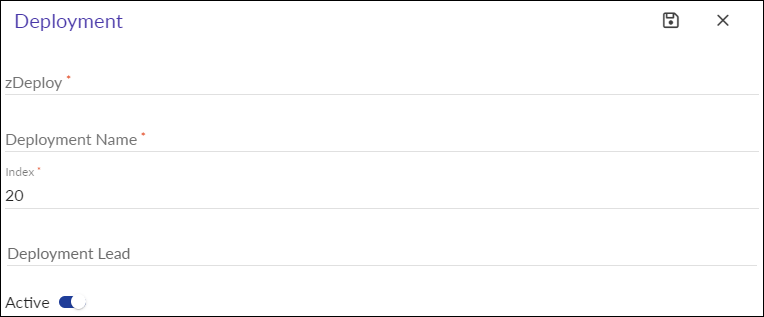
Project Setup: Add Deployment window
See below for field definitions for adding a Deployment:
|
Field |
Definition |
|---|---|
|
zDeploy* |
Short name that appears on all validation reports to segment data. (Required) |
|
Deployment Name* |
Name of the Deployment. (Required) |
|
Index* |
Sequence of the list. Value will increase by factor of 10 for each new entry. (Required) |
|
Deployment Lead |
Business user responsible for this Deployment. NOTE: This field accommodates keyed entries as well as a drop-down list. |
|
Active |
Toggle for status of the Release for future-state design mapping and migration. NOTE: Defaults field as Active. |
NOTE: Deployments are set to be unique across a set of projects and releases. The same zDeploy name cannot be entered more than one time. The error message below will display should the user attempt to enter the same zDeploy Name more than once.
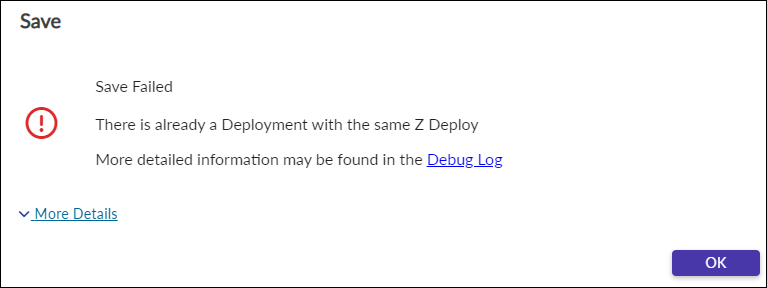
Project Setup: Deployment: Error message
When finished with edits, click the Save  icon to complete.
Edit a Deployment
On the Deployment panel, click the Edit  icon on the selected Deployment record to Edit the Deployment and launch the Edit Deployment window.
From this window, fields values can be entered as shown below.
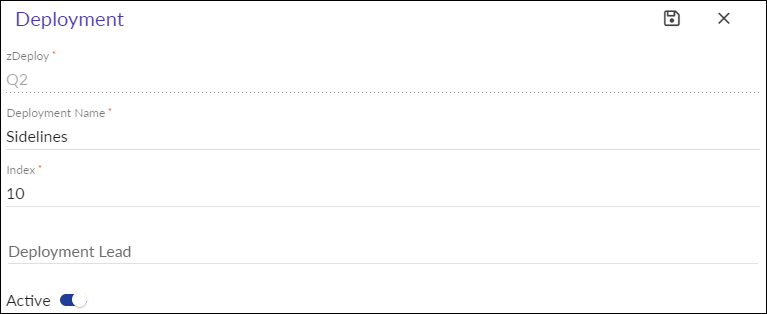
Project Setup: Edit Deployment window
When finished with edits, click the Save icon to complete.
Delete a Deployment
After a Deployment has been added to the Project/Release, it may be deleted. The process for deletion will include a check against the Mappings and Reports generation processes.
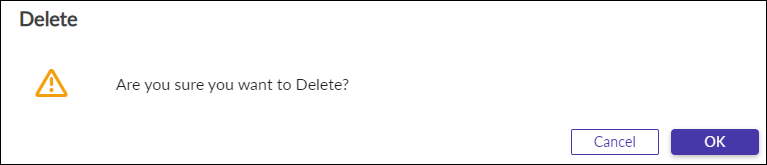
Mappings: Deployment: Delete Warning
Click OK to Proceed or CANCEL to exit without action.
NOTE: If the deployment has been used to generate reporting, then it will not be allowed for deletion. It can then be marked as Inactive if no longer needed. There is an Error message that will display should the Deployment not be allowed for Deletion.
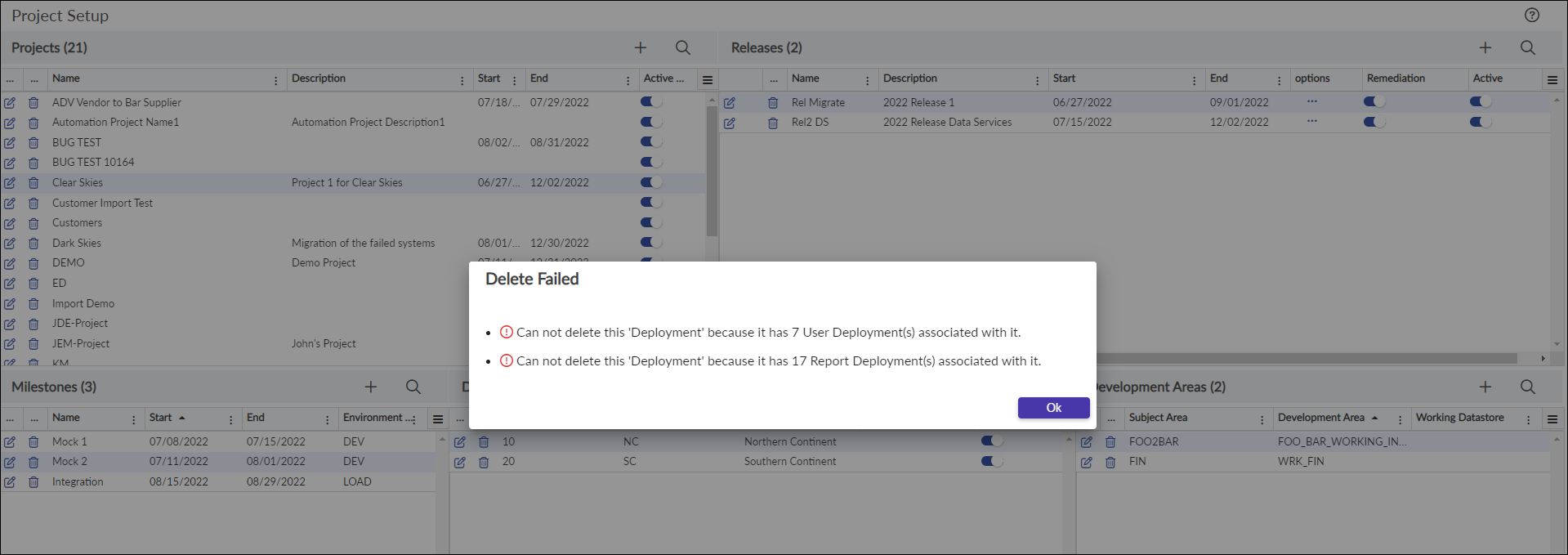
Project Setup: Delete Deployment: Error
Subsequent Tasks
Within Migration Security, Deployments are assigned to Users/Employees to provide them access to view the data. Refer to section Administer > Security > Employees for more details of this topic and use. Should the user not have active Deployments assigned, the Deployment Reports will not be available in the page. Refer to section Validate> Deployment Reports for more details of this topic and use.
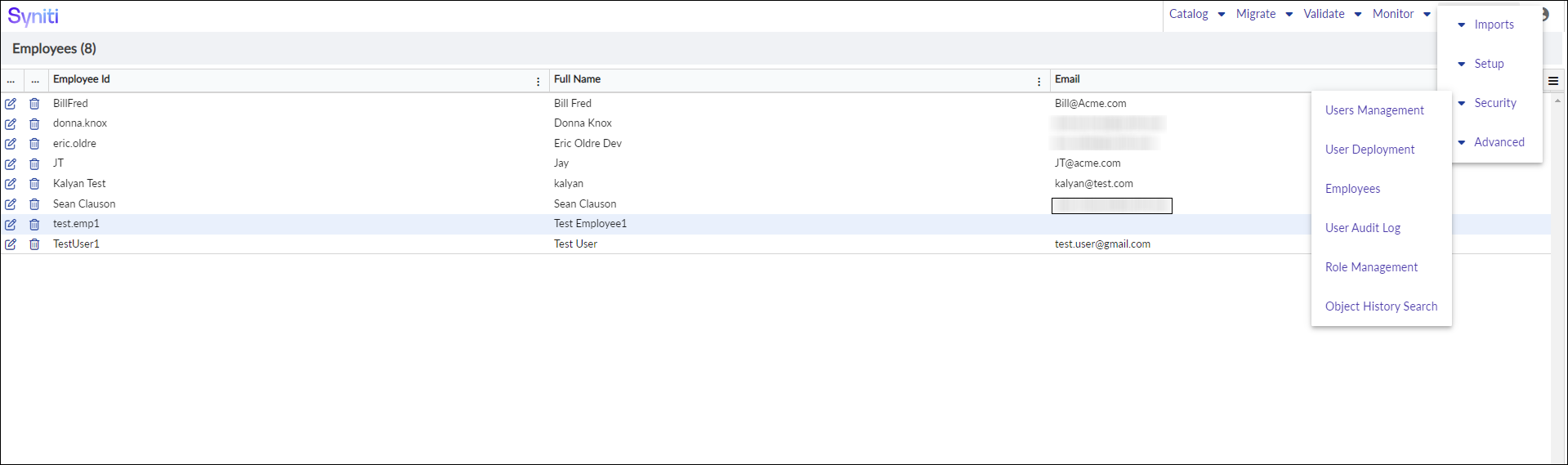
Employees: Details
A subsequent step of this process is to build the Development Areas within Project Setup.